AUDIO TO MIDI · REPEATABLE TEST
How do you keep an audio to MIDI test passage repeatable?
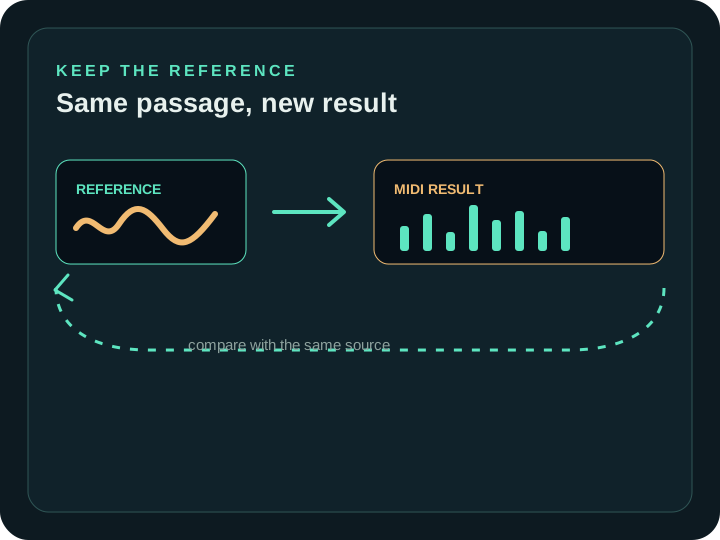
Keep one unchanged source excerpt as the reference, preserve its exact beginning and ending, and compare every exported MIDI file with that same excerpt. Do not replace the audio, trim it differently, or change several review decisions at once; if the source changes, treat it as a new test rather than evidence about the previous result.

What makes an audio to MIDI test repeatable?
A repeatable test keeps the thing being tested separate from the thing being changed. For an audio to MIDI conversion, the reference is the same passage from the same source copy. The output is a MIDI interpretation that you inspect against that reference. The MIDI Association describes MIDI as information about a musical performance rather than recorded sound, and the Library of Congress description of Standard MIDI File describes structured sequence data. The comparison therefore asks whether the note events represent the same passage; it is not a waveform-to-waveform match.
The practical rule is simple: make a reference copy that you do not edit during the comparison. Keep the original recording available, but use one clearly identified excerpt for the test. A different trim, a different source export, or a muted layer changes the input and makes the next result answer a different question.
How should you prepare the reference passage?
Choose a musical passage that you can recognize in both the recording and the returned MIDI. Write down where the passage begins and ends in your own project notes, then duplicate the source before making any cleanup or isolation decision. The duplicate is the conversion input; the untouched source remains the listening reference.
- Choose the passage whose notes you want to compare.
- Keep the original source unchanged and make a clearly named test copy.
- Preserve the same beginning and ending when you make another test copy.
- Record any source edit separately instead of silently replacing the reference.
This separation matters especially when the source is a full mix. If you mute an unrelated part or isolate a target melody, you may be making a useful new input, but it is no longer the same test passage. Use the melody-isolation workflow when the musical question is about a target line, and keep that prepared copy clearly distinct from the comparison reference.
Which things should stay fixed between comparisons?
Keep the source file, the selected passage, and the conversion path fixed while you are asking whether two results differ. On this site, the Audio to MIDI tool accepts one selected local audio file and returns a standard .mid download in the visitor's browser. Select the same local test copy when you are comparing passes; do not compare a result made from a vocal stem with a result made from the full arrangement and call the difference an engine change.
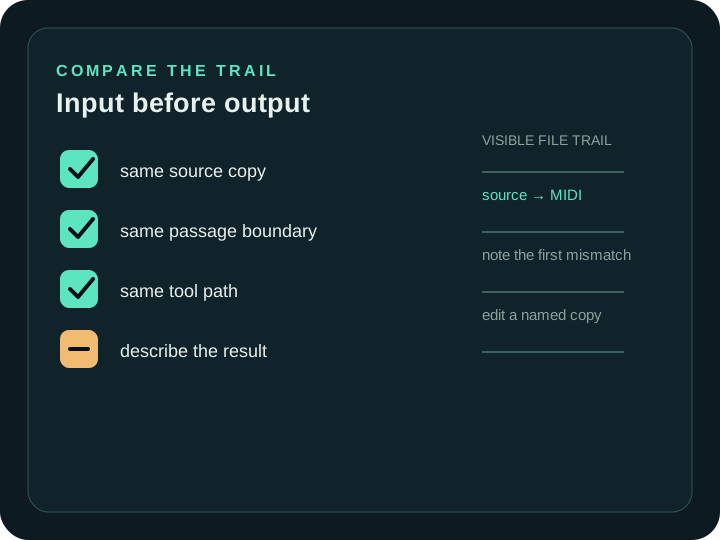
- Source: use the same unchanged test copy for the comparison.
- Boundary: keep the same start and end so the musical context does not move.
- Path: use the same tool page and the same input method.
- Record: note which source copy produced each downloaded MIDI file.
A filename helps you find a file, but it is not proof that the audio inside is the same. Keep the source copy next to the result and write a short note that connects them. If you cannot identify the source behind a MIDI export, mark the comparison as inconclusive rather than assigning the difference to one step.
What does the browser need to decode?
The current local implementation reads the selected file as an ArrayBuffer and passes the complete data to AudioContext.decodeAudioData() before it analyzes the audio. The MDN Web Audio reference says this method decodes audio file data from an ArrayBuffer and works on complete file data rather than fragments. That gives the repeatable test a concrete boundary: use the same complete source copy, not a differently cut fragment that only looks similar in a file list.
If you need a shorter passage, make that trim once, save it as a named test copy, and reuse that exact file. A later trim or re-export is useful as a new experiment, but it should be recorded as a new input instead of being treated as the same test.
How do you compare the returned MIDI with the source?
Listen to the same passage in the source and inspect the corresponding MIDI events in a fixed order. Start with the pitch contour: does the phrase rise, fall, repeat, or hold in the same places? Then check the note positions and lengths, followed by the emphasis you hear when the MIDI plays. The Ableton Live Reference Manual documents pitch, time position, note length, and velocity as separate MIDI editing concerns, which makes them useful separate observations during a comparison.
Write down the first mismatch before you edit anything. If a pitch is wrong but the timing is clear, record a pitch observation. If the notes have the expected contour but arrive at the wrong place, record a timing observation. Keeping the observations separate prevents a grid edit from hiding a source problem or making a timing change look like a pitch improvement.
What should you do when two results do not match?
First check the input trail before changing the conversion workflow. Confirm that the source copy, passage boundary, tool path, and downloaded result belong to the comparison you intended. If the source changed, start a new comparison and name the reason. If the source is the same, keep the original result and describe the mismatch before trying a deliberate edit.
A useful next pass changes one decision at a time. For example, prepare a separate cleaner source copy and compare it with the unchanged reference, or edit a named MIDI copy after the source event is clear. The Jukeblocks Audio to MIDI page also directs attention to clear recordings and notes that dense results may need editing; the repeatable-test addition here is to keep the source trail visible so a new input is not confused with a new conclusion.
How do I compare audio to MIDI results fairly?
Use the same unchanged audio excerpt, the same start and end, and the same conversion path. Keep each downloaded MIDI file beside the source copy that produced it, then compare pitch, timing, note length, and emphasis against the same recording. If you change the source or its boundary, label that as a new test.
Is a result filename enough to reproduce a test?
No. A filename can identify a download, but it does not preserve which audio copy or passage was selected. Keep the source excerpt and a short comparison note with the MIDI result. That small trail lets you tell a source change from a result change without inventing a cause after the fact.
Where does the browser-local workflow fit?
The Audio to MIDI page runs the selected audio analysis in the visitor's browser and returns a standard .mid file without uploading the selected audio. Make the reference copy on your own device, run that same copy when comparing results, and keep the source beside the download.
If the next step is notation, send the reviewed MIDI to MIDI to Sheet Music. If the source is a single vocal line, use Vocal to MIDI; if the source needs preparation first, see the cleaner-source diagnostic.
What is the simplest repeatability rule?
Never change the reference while you are deciding whether a conversion result changed. Keep one source excerpt, one clear boundary, and one visible file trail. When you intentionally alter the source, create a new comparison and write down that change before listening to the new MIDI.
Once the reference is ready, run the Audio to MIDI tool locally, compare the returned notes with the same recording, and keep an untouched result before making edits.