AUDIO TO MIDI · MELODY PREP
How do you isolate a melody before audio to MIDI?
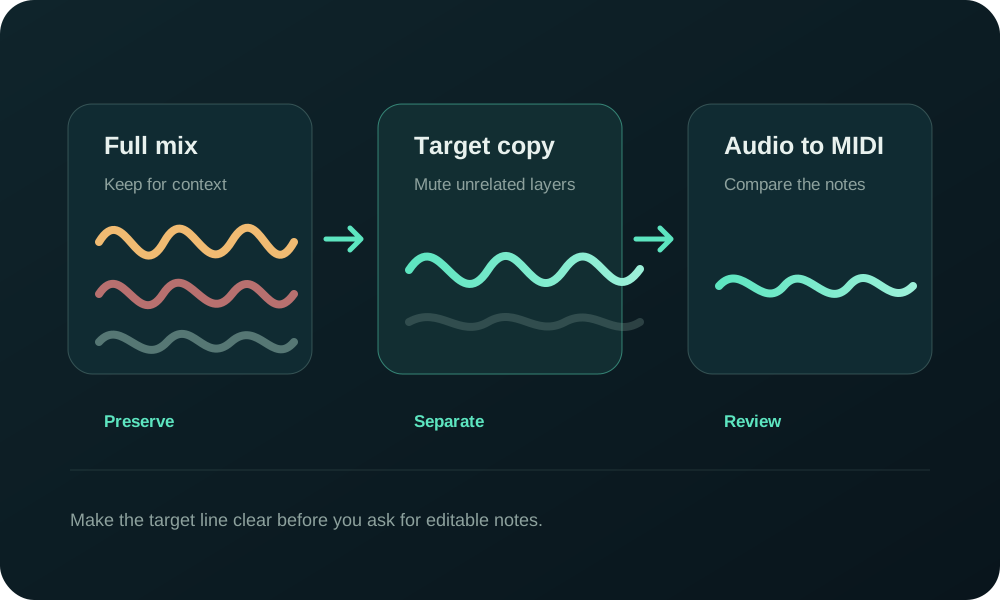
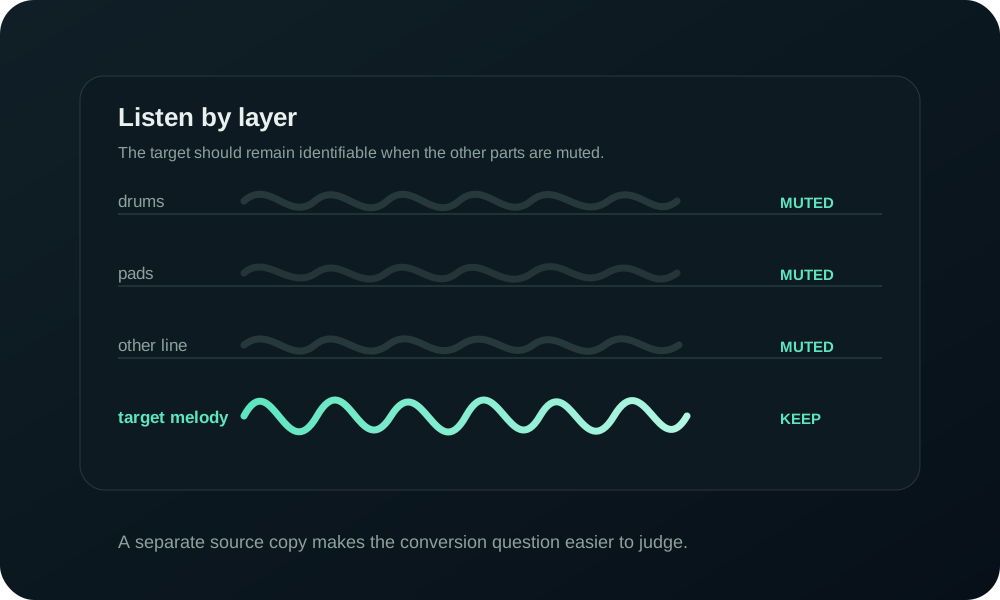
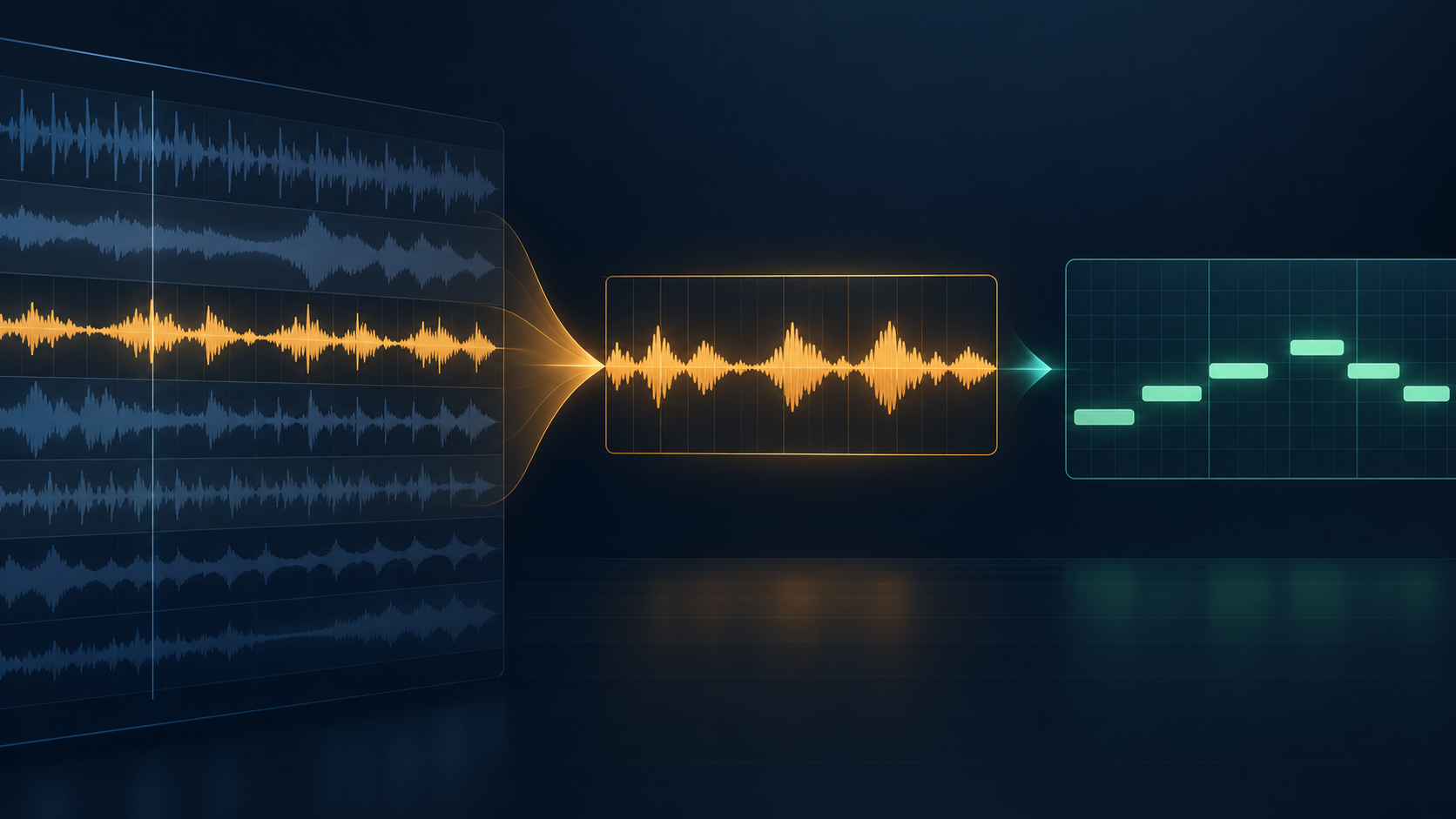
When a busy mix contains several active parts, isolate a separate copy of the target melody before converting it to MIDI. Keep the original mix untouched, mute unrelated layers in your editor, and listen for a clear start, body, and ending of the target line before exporting the copy. Convert that copy when one line is easier to follow; do not expect a dense full mix to become a clean single-line MIDI result just because it was uploaded.
What does isolating a melody change?
Isolation changes the input you are asking the converter to interpret; it does not change the MIDI format itself. The MIDI Association describes MIDI as information about a musical performance, while the Library of Congress description of Standard MIDI File describes structured sequence data rather than recorded sound. A separate melody copy gives the browser a clearer listening reference for the note line you want to represent.
The useful boundary is the target line, not the file extension. An MP3, WAV, FLAC, M4A, or OGG file can still contain several competing parts. Changing the container does not decide which voice, instrument, or phrase should become MIDI notes; your source preparation has to make that choice explicit.
What does a browser need to read from an isolated melody?
An isolated source should be a complete audio file whose target line is easy to follow, not a clipped fragment that starts or ends inside a note. In the current local implementation, app.js reads the selected file with arrayBuffer(), passes the complete data to AudioContext.decodeAudioData(), and then reads channel 0 with AudioBuffer.getChannelData(0) before analyzing frames. MDN documents that decodeAudioData() decodes complete ArrayBuffer file data into an AudioBuffer; its getChannelData() reference describes the per-channel PCM array. These are browser-processing facts, not a promise about transcription quality.
That boundary gives you a practical preflight: export the target copy as a complete file, listen through the first and last note, and make sure the target is present in the channel the local workflow reads. Keep the original mix beside it so a later note edit can be checked against the source rather than against memory.
Can source separation help before audio to MIDI?
If muting tracks is not possible, source separation can be a preparation step. The Demucs project describes separating drums, bass, and vocals from accompaniment and documents a two-stems vocal workflow. Treat a separated stem as a new listening reference, not as a guaranteed clean melody: audition the target passage for leakage, added artifacts, or missing attacks before sending it to an audio to MIDI converter.
- Keep the untouched mix and the separated or muted copy as separate files.
- Listen for the target's attacks, held notes, releases, and rests across the whole passage.
- If an overlap remains ambiguous, mark that passage instead of presenting a guessed note as settled.
Which parts should you mute first?
Start by naming the line you want to keep: a vocal phrase, a lead instrument, or another single melodic part. Then listen to the busy passage while muting parts that do not belong to that line. The goal is not to make the copy sound impressive; the goal is to make each target attack and release easy to identify before the next audio to MIDI pass.
- Keep the target: preserve the performance whose pitches and timing you want to capture.
- Mute competing lines: remove other vocals, countermelodies, or instruments that overlap the target.
- Check the attack: listen for the start of each note instead of relying on a sustained tail.
- Check the ending: make sure a release or rest is not hidden by a pad, drum, or room sound.
If the target disappears whenever another layer enters, mark that passage as an overlap problem. Do not describe it as a converter setting problem until the source makes the intended line clear enough to judge.
How can you make a melody copy without losing the mix?
Work from a copy of the session or source arrangement, not from the only copy of the recording. Keep the full mix available for musical context and export a separate file whose contents are limited to the target line. The Ableton Live Reference Manual documents pitch, position, length, and velocity as separate MIDI note properties; preserving the source makes it possible to decide later whether a mismatch came from the recording or from a note-level edit.
- Write down which line is the target and where the passage begins and ends.
- Duplicate the working material so the full mix remains unchanged.
- Mute or remove unrelated layers, then listen through the entire target passage.
- Export the prepared copy and keep it beside the original mix.
- Run the prepared copy through the browser-local audio to MIDI tool and compare the result with the source.
This workflow separates two decisions that are easy to confuse: choosing what the converter should hear, and correcting the MIDI that it returns. The Jukeblocks Audio to MIDI page also points readers toward clearer recordings and warns that a dense result may need editing; the source-first addition here is to preserve the original mix while making the target line explicit.
What if the melody overlaps another part?
An overlap is not automatically a reason to promise a clean transcription. Listen to the shared passage in the prepared copy and decide whether the target remains distinguishable. If it does, keep that passage and review the returned notes carefully. If it does not, mark the passage as an unresolved source section and avoid treating a guessed note cluster as a faithful representation of the melody.
After conversion, use the source recording as the reference. If the same confusion returns in the same place, follow the cleaner-source diagnostic before trying another pass. If the source is clear and only a note property is wrong, use the first-pass review workflow and edit a named MIDI copy.
Should I convert a full mix or isolate the melody first?
Isolate the melody first when your goal is one editable line and the full mix contains competing parts. Keep the full mix as your listening reference, make a separate target-line copy, and convert that copy. A full mix can still be useful when you need context, but it should not be treated as a clear single-line source if overlapping parts make the intended notes hard to identify.
How does the local browser workflow fit?
The Audio to MIDI tool on this site accepts one selected local audio file and analyzes it in the visitor's browser, returning a standard .mid download without uploading the selected audio. Prepare the separate melody copy on your own device, then choose it in the tool.
If you need notation after the MIDI pass, continue with MIDI to Sheet Music. If you are starting from a single vocal line, the Vocal to MIDI page describes that narrower source case.
What is the simplest isolation rule?
Preserve the complete mix for context, but give the conversion a separate copy in which the target melody is the clearest remaining line. If you cannot identify the target without guessing, stop source preparation there and record that limitation instead of presenting a crowded MIDI result as settled.
Once the target copy is ready, run the Audio to MIDI tool locally, then check the notes against the original recording before you arrange or render them.