AUDIO TO MIDI · FLAC INPUT
Can you convert a FLAC file to MIDI in a browser?
Yes. Select a local .flac file on the Audio to MIDI page, let your browser decode the complete file, and download the resulting .mid. The selected audio stays in the browser session; the important limitation is that a lossless container does not automatically make a dense or noisy recording easy to transcribe.
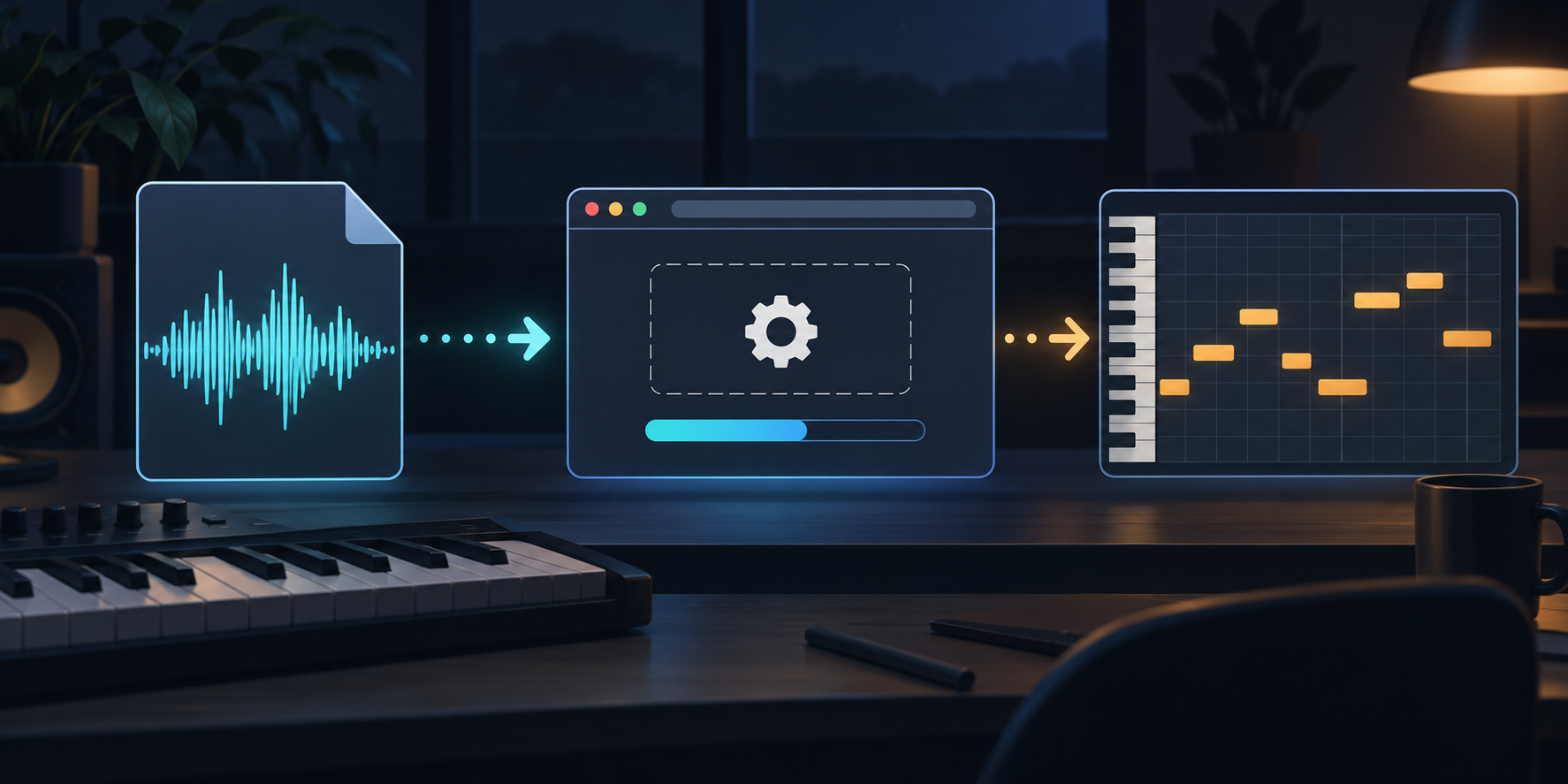
What does FLAC change in an audio to MIDI workflow?
FLAC is a lossless audio codec. The official FLAC project explains that decoding preserves the audio data that went into the file, so choosing FLAC can preserve a clean source rather than adding another lossy encode to the workflow. That is useful when you already have a FLAC master or export.
Lossless does not mean isolated. A FLAC file can still contain a full mix, room sound, clipping, reverb, or several instruments playing at once. Those are properties of the recording, not problems that the file extension fixes. Treat the FLAC as the source you want to inspect, then ask whether the musical line you need is clear enough to identify before you convert it.
Can a browser decode a local FLAC file?
A browser can pass complete file data to the Web Audio API for decoding. MDN documents decodeAudioData() as the method that takes an ArrayBuffer of audio data and produces an AudioBuffer; it also notes that the method works on complete file data rather than fragments. In practice, the browser still needs to recognize and decode the particular file, so a decode error is a signal to check the file and browser before investigating MIDI notes.
The current MP3toNotes tool follows that local pattern: its file picker lists FLAC as an accepted input, the browser reads the selected file, and the conversion code sends the file bytes to the browser audio context. There is no account step or upload form in this workflow. You choose the file on your own device and receive a standard .mid download when the pass completes.
What should you prepare before converting FLAC to MIDI?
Start with the clearest musical question you can state. If you want the melody, listen for one identifiable line. If you want a bass part or a keyboard figure, keep that target in mind and avoid treating every event in a dense mix as equally important. Preserve the original FLAC and make any cleaned or isolated copy separately, so you can tell which source produced each MIDI file.
- Keep the original FLAC unchanged as the listening reference.
- Choose a passage whose beginning and ending you can recognize.
- Use a separate prepared copy if you remove unrelated layers or room sound.
- Write down the source copy and passage before downloading a result.
Spotify's Basic Pitch documentation is a useful public reference for the general transcription problem: it lists FLAC among its compatible audio inputs and says the model works best on one instrument at a time. That is not a claim about MP3toNotes performance; it is a reminder that file format and musical separation answer different questions.
What does the MIDI file contain?
MIDI is not a copy of the FLAC waveform. It is structured performance information that a MIDI player or DAW can turn into sound with an assigned instrument. The MIDI Association's message summary describes Note On and Note Off events, including a key number and velocity. For a first review, listen to the source and inspect whether the returned events begin, end, and emphasize the same musical ideas.
- Pitch: does the note move to the same high or low position?
- Timing: does the event begin where the source phrase begins?
- Length: does the note end with the source event?
- Velocity: does the emphasis feel consistent with the performance?
This review order keeps a file-format question separate from a transcription question. If the browser cannot decode the file, fix the input path first. If the file decodes but the notes need attention, compare the MIDI events with the same passage from the original FLAC.
How do you convert a FLAC file to MIDI in the browser?
- Open the Audio to MIDI tool.
- Select one local FLAC file from the file picker.
- Wait for the browser-local analysis to finish and download the
.midresult. - Play or inspect the MIDI with the same source passage beside you.
- Keep the original result before making any later MIDI edits.
The tool is designed for one selected local audio file per run. That keeps the source trail understandable: one FLAC copy, one conversion pass, and one MIDI result that you can review. It is not a batch-conversion workflow, and it does not require you to upload the source audio to a server.
What if the FLAC file does not decode?
First confirm that the file is complete and really contains FLAC data rather than only having a renamed extension. Try opening the same file in a current browser or player that you already trust. If the browser still reports a decode error, use a known-good WAV copy as a diagnostic comparison, keep the original FLAC untouched, and record which file was used for each pass.
Do not treat a successful decode as proof that the musical result will be clean. A full arrangement, a noisy recording, or overlapping lines can still produce note events that need review. If the target event is unclear in the source, prepare a cleaner copy first; if the source event is clear and only one note property is wrong, keep the first export and edit a named MIDI copy.
Is FLAC better than MP3 for audio to MIDI?
FLAC preserves the encoded audio data without lossy compression, but that alone does not decide how easy a recording is to transcribe. A clear MP3 can be a more useful source than a noisy or crowded FLAC. Choose the cleanest source that answers your musical question, then compare the returned MIDI with the same recording.
Does converting FLAC to MIDI upload my audio?
On the MP3toNotes Audio to MIDI page, the selected file is read and analyzed in the visitor's browser. The site does not require an account or an upload step for this browser-local workflow. Keep the source file on your own device and do not select audio that you do not have permission to use.
What should you do after the first MIDI pass?
Keep the first download unchanged, then listen through the same passage and record the first mismatch you notice. If the source itself is ambiguous, see the cleaner-source diagnostic. If the source is clear but the MIDI needs a focused correction, use the first-pass review order before editing. If the final goal is notation, send the reviewed MIDI to MIDI to Sheet Music.
What is the short answer?
Yes: FLAC is an accepted input on the Audio to MIDI page, and the selected file can be decoded in the browser before a standard MIDI file is downloaded. FLAC preserves the source audio, but the result still depends on what the recording contains. Keep one clear reference passage, review pitch and timing, and treat every prepared copy as a separate test.
When you are ready, open the Audio to MIDI tool and select your local FLAC file.