AUDIO TO MIDI · EDITING WORKFLOW
How to check and edit an audio to MIDI result.
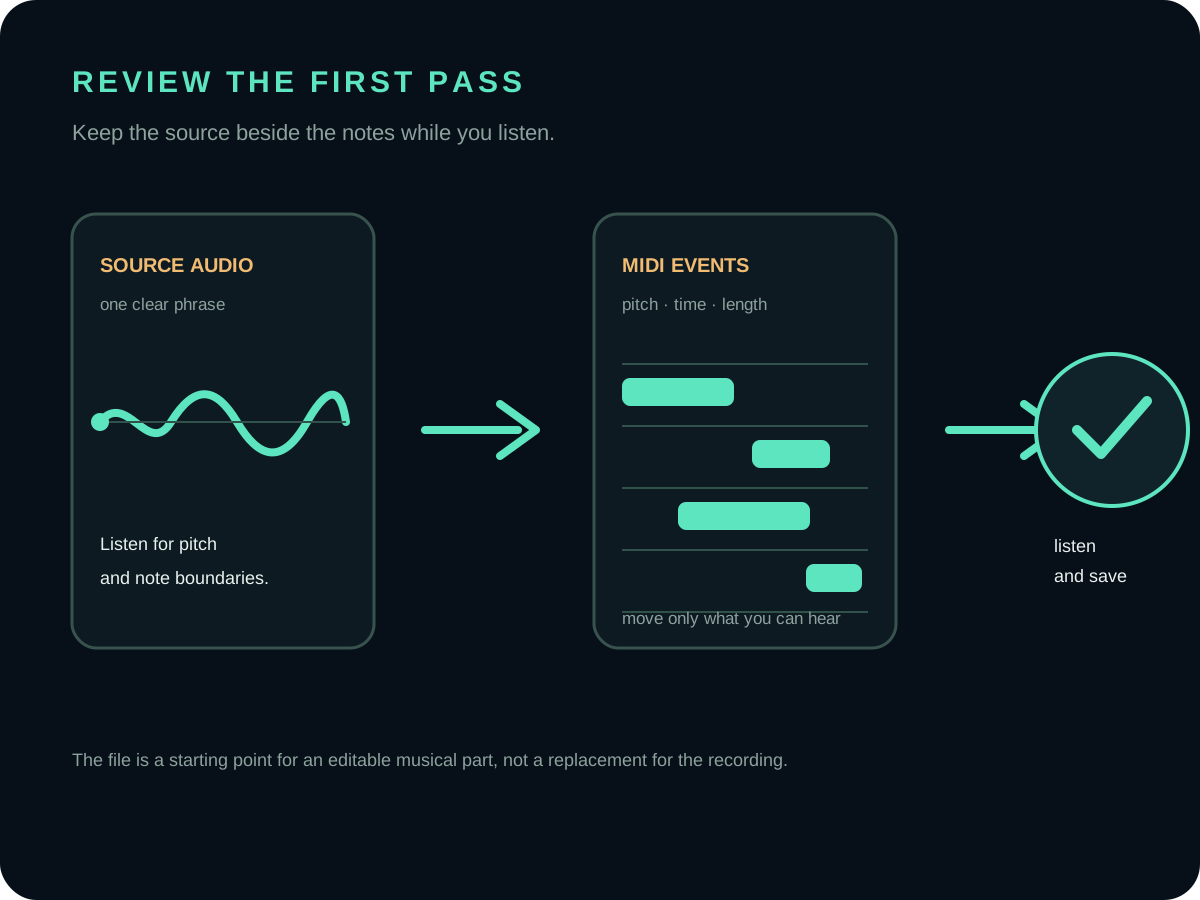
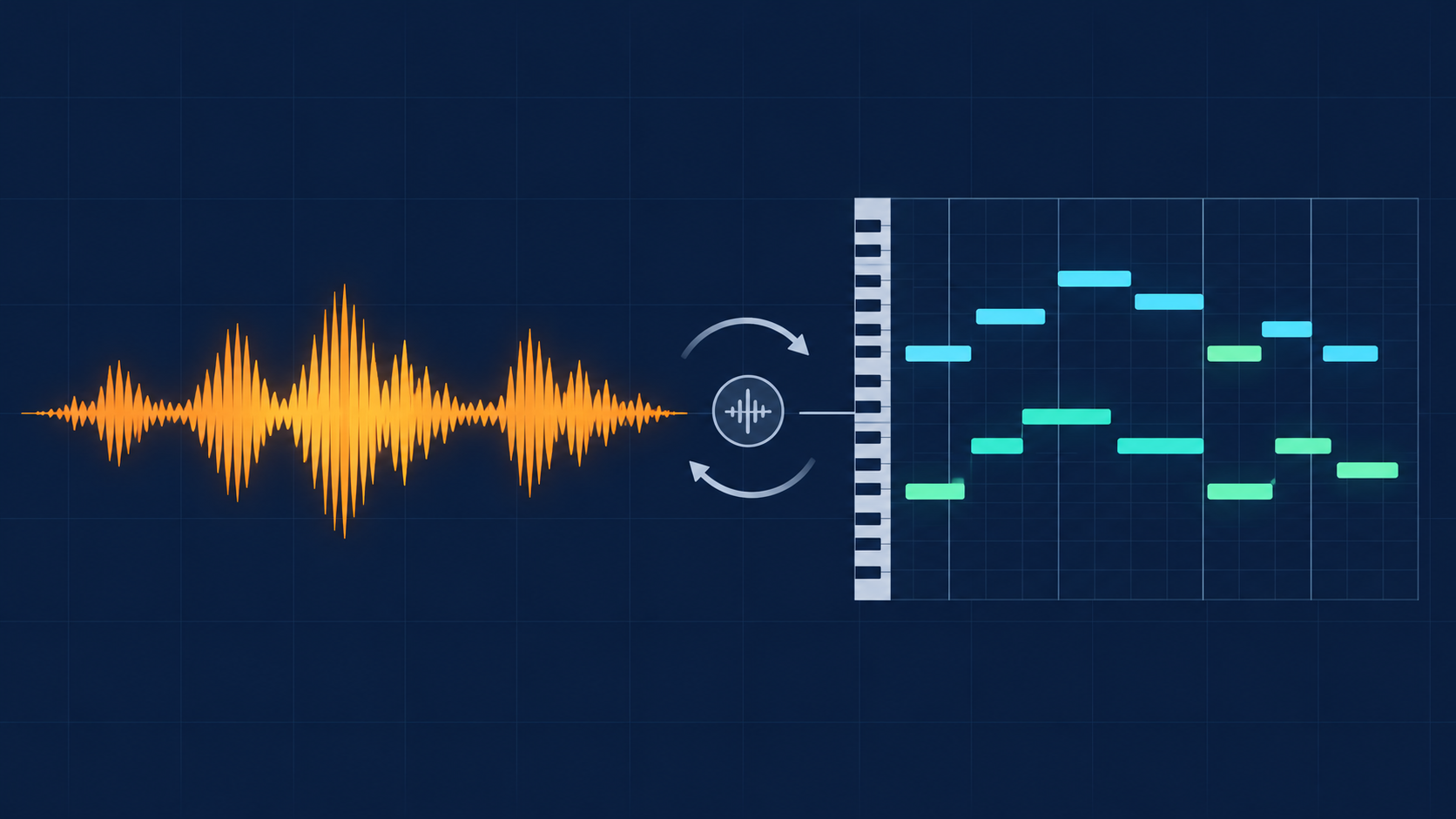
An audio to MIDI conversion gives you a first-pass set of note events. Open the .mid beside the original recording, listen for pitch and timing mismatches, then make small edits before you arrange the part or turn it into notation.
What should you check first?
Start with the part you meant to transcribe, not with the shape of the MIDI file. Play the source recording and the MIDI with a simple instrument sound, then follow one short phrase from beginning to end. The first pass is useful when its pitches and note boundaries give you something concrete to edit; it is not a replacement for listening to the source.
A MIDI file stores symbolic events rather than the recorded waveform. The Library of Congress description of the Standard MIDI File format and the MIDI Association's explanation of MIDI are useful references for that distinction. The instrument you hear during review comes from your DAW or MIDI editor, not from the original MP3 or WAV.
A practical DAW review loop
- Make a working copy. Keep the downloaded
.midunchanged so you can compare your edits with the first pass. - Line up the starts. Put the source audio and MIDI at the same musical start point. If the first note is offset, fix that before judging every later note.
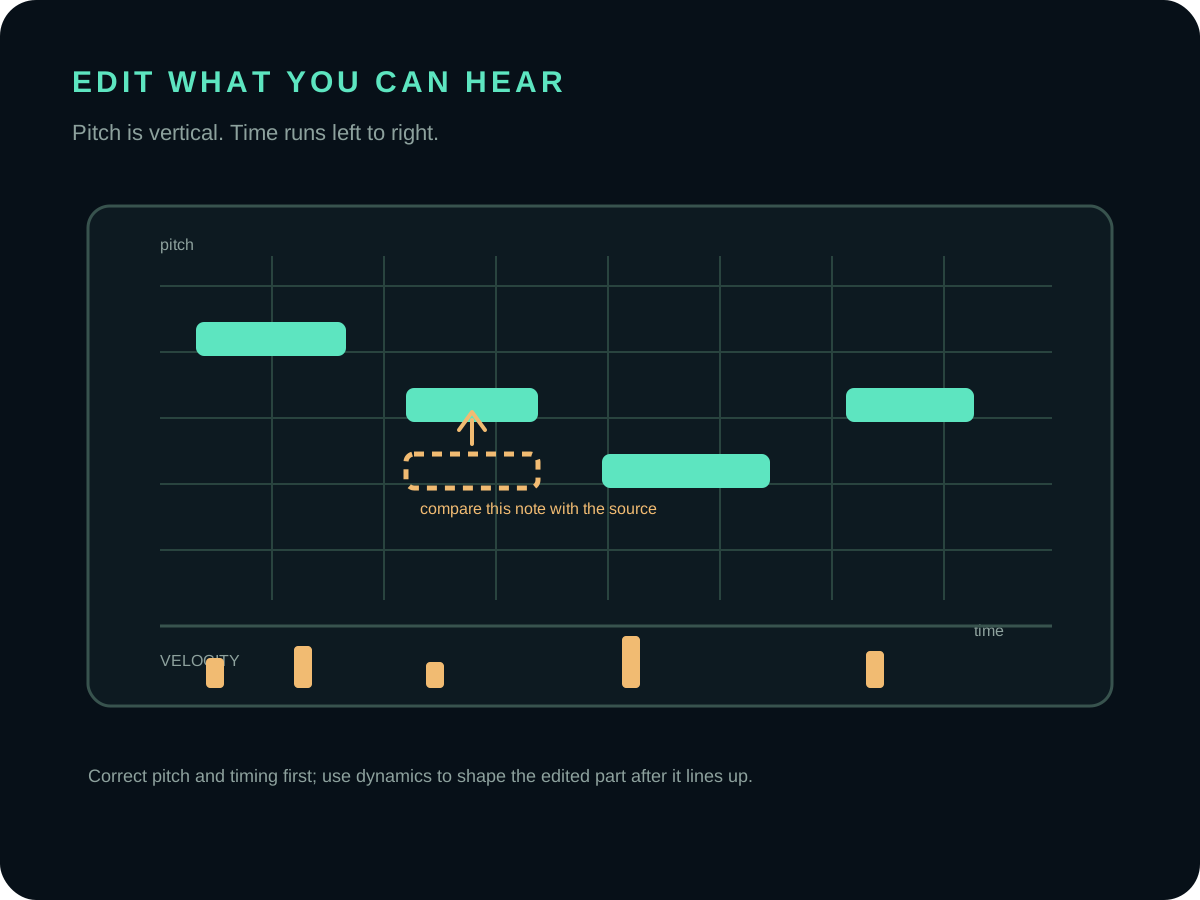
- Check pitch in short phrases. Follow the melody one phrase at a time. Move an obvious wrong note vertically, or remove a short artifact that has no matching sound in the recording.
- Check timing and length. Compare each note's start and release with the source. A note can have the right pitch and still start too early, end too late, or be split unnecessarily.
- Check velocity last. Use the velocity lane to restore a clear accent or soften a note that plays too loudly. Do not use velocity to hide a pitch error.
- Listen again before exporting. Play the edited phrase with the source muted, then with the source restored. Save a new version only after both comparisons make sense.
This order keeps the review local to the notes that need attention. It also leaves the original recording untouched: editing the MIDI changes the event data in the DAW, not the audio file used as your reference.
How do you correct pitch, timing, and dynamics?
Use the piano-roll editor's vertical axis to correct pitch and its horizontal timeline to correct placement. Extend or shorten a note only after you can hear where the source starts and stops. If several notes are wrong in the same way, correct a small phrase and replay it before applying a larger edit.
The Ableton Live reference manual documents the same three kinds of review controls: the MIDI Note Editor can move notes in pitch and time, and a Velocity Editor can change note dynamics. The names and shortcuts differ across DAWs, but the underlying checks—pitch, position, length, and velocity—are a practical way to inspect any standard MIDI file.
What is actually being edited in an audio to MIDI result?
The thing you edit is symbolic note data, not the original waveform. The Library of Congress description of Standard MIDI File calls it a wrapper format for MIDI data and marks normal sound rendering and audio fidelity as not applicable. The Ableton Live reference gives a useful editor vocabulary: pitch, position, length, and dynamics represented as velocity.
That distinction gives you a safe review order. First decide whether the note belongs there; then adjust its start and release; only after that use velocity or an instrument choice to judge emphasis. A different playback instrument can change what you hear during review, but it does not rewrite the source MP3 or WAV.
How does the local browser workflow fit the review?
In the current local implementation, the selected file is read with arrayBuffer(), decoded with AudioContext.decodeAudioData(), analyzed, and returned as a downloadable .mid file. The selected audio stays in the visitor's browser; there is no upload endpoint in this workflow. These are current implementation observations, not a promise about transcription quality or how much editing any particular recording will need.
Keep that downloaded first pass unchanged, make a named working copy in your DAW, and compare the edited phrase against the original recording before exporting another version. If you cannot explain why a note moved, leave the first pass intact and mark the phrase for another listening pass.
Should you quantize every note?
No. Quantization is a correction tool, not a required final step. First decide whether a note is actually late or early in the source performance. If the performance has a deliberate push or pull, quantizing every note can remove that feel. If only a few starts are loose, select those notes or use a lighter quantization amount, then listen again.
Ableton's documentation describes both full grid quantization and an Amount control that moves notes by a percentage of the chosen value. That is why a small, selected edit is often safer than forcing an entire transcription onto one grid.
What kind of source is easiest to review?
A clear single vocal line or single instrument gives you a more focused first pass than a dense full mix. The MP3 to MIDI tool processes one selected audio file in the browser and returns a standard .mid file; it does not upload the selected audio. If the recording contains overlapping parts, room sound, or layered harmony, treat the result as a rough starting point and expect a more active cleanup pass.
For a fresh conversion, use the Audio to MIDI tool. The companion Audio to MIDI guide explains what the file carries, while this page focuses on what to do with the notes after the download.
Can MIDI editing change the original audio?
No. MIDI editing changes note events, timing, duration, or velocity in the MIDI project. The original MP3 or WAV remains a separate reference file. You can assign a different instrument, transpose the part, or send the MIDI to notation software without rewriting the recording.
What should you do after the notes are clean?
Keep the edited MIDI as its own version. Use MIDI to Sheet Music when you want to inspect or export notation, or return to Audio to MIDI for another source file. The goal of the review is a MIDI part you can explain note by note, not a file that only looks tidy on the grid.